
Indee for iPhone Beta
Your session recordings.
All together.
Available offline.
Keep the recordings and practices your practitioner shares with you together on your iPhone. Accept an invitation in the app, then listen online or download for offline listening.
Join the iPhone betaAn early version, ready for your feedback.

On a computer?
Scan with your iPhone camera
to open the beta invitation.
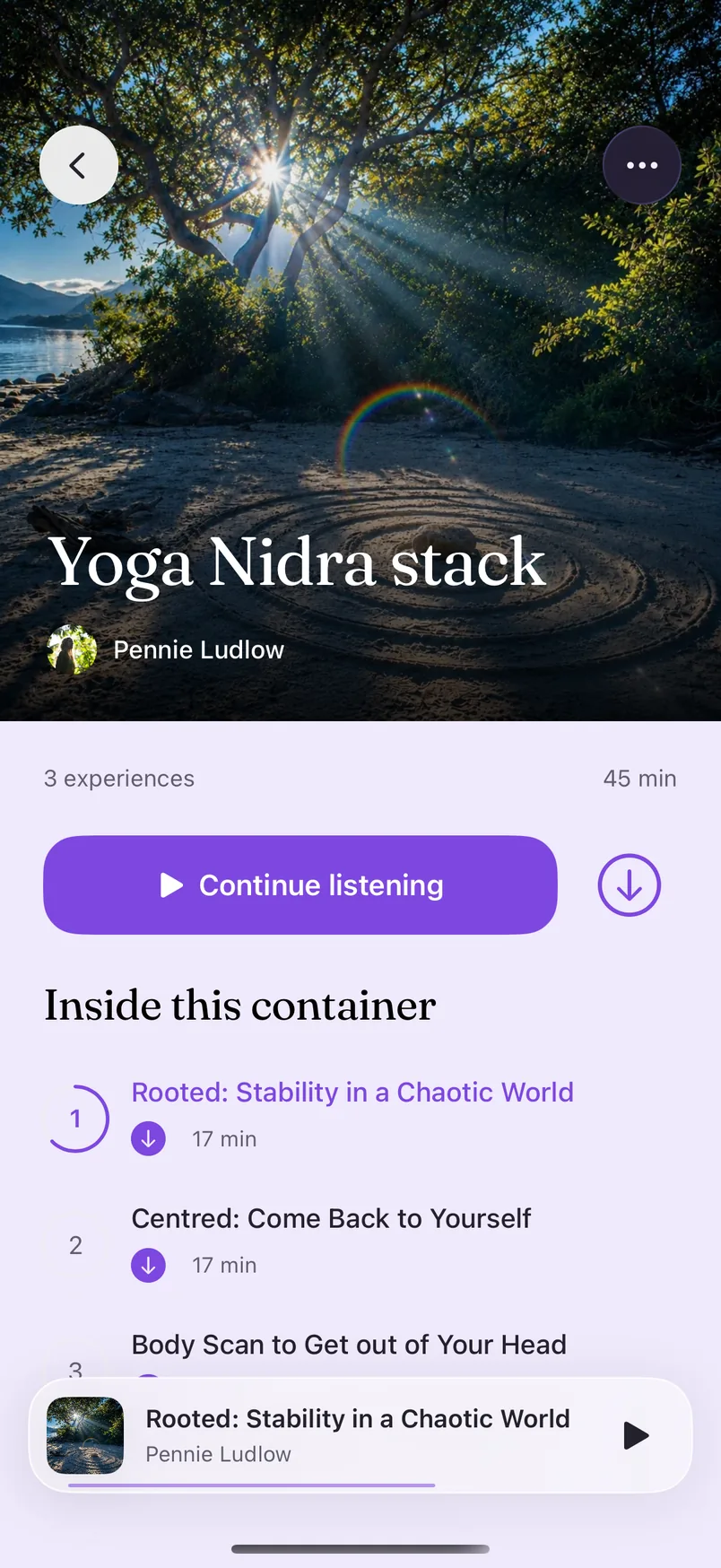
Everything in one place
Your session recordings, courses and favourite practices, easy to find and return to.
Invitations, accepted in the app
When a practitioner invites you, the invitation is waiting on your home screen. One tap adds it to your library.
Offline listening
Download the recordings you want to listen to without an internet connection.
New recordings arrive automatically
When your practitioner adds a recording, it appears in the app on its own.
Night mode
A softer screen
for deep work.
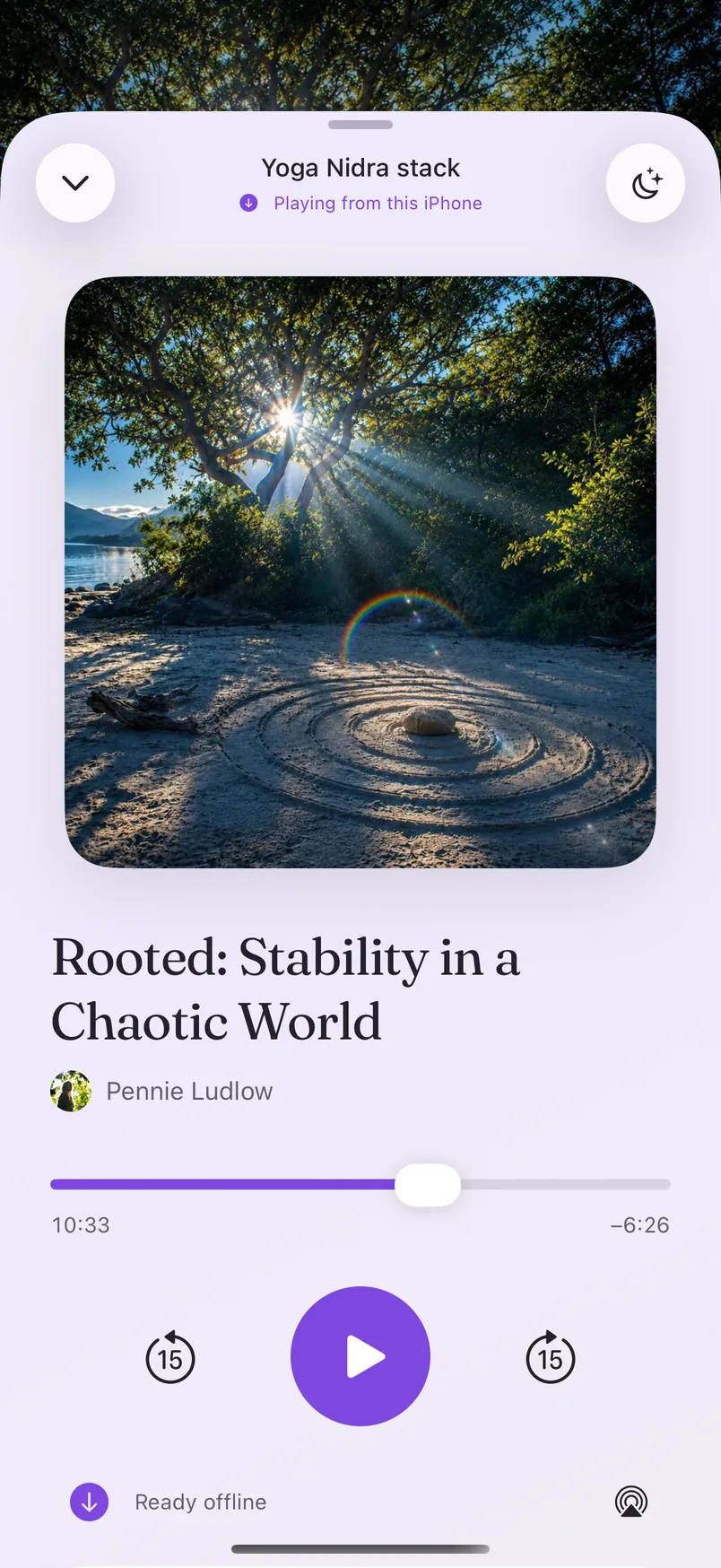
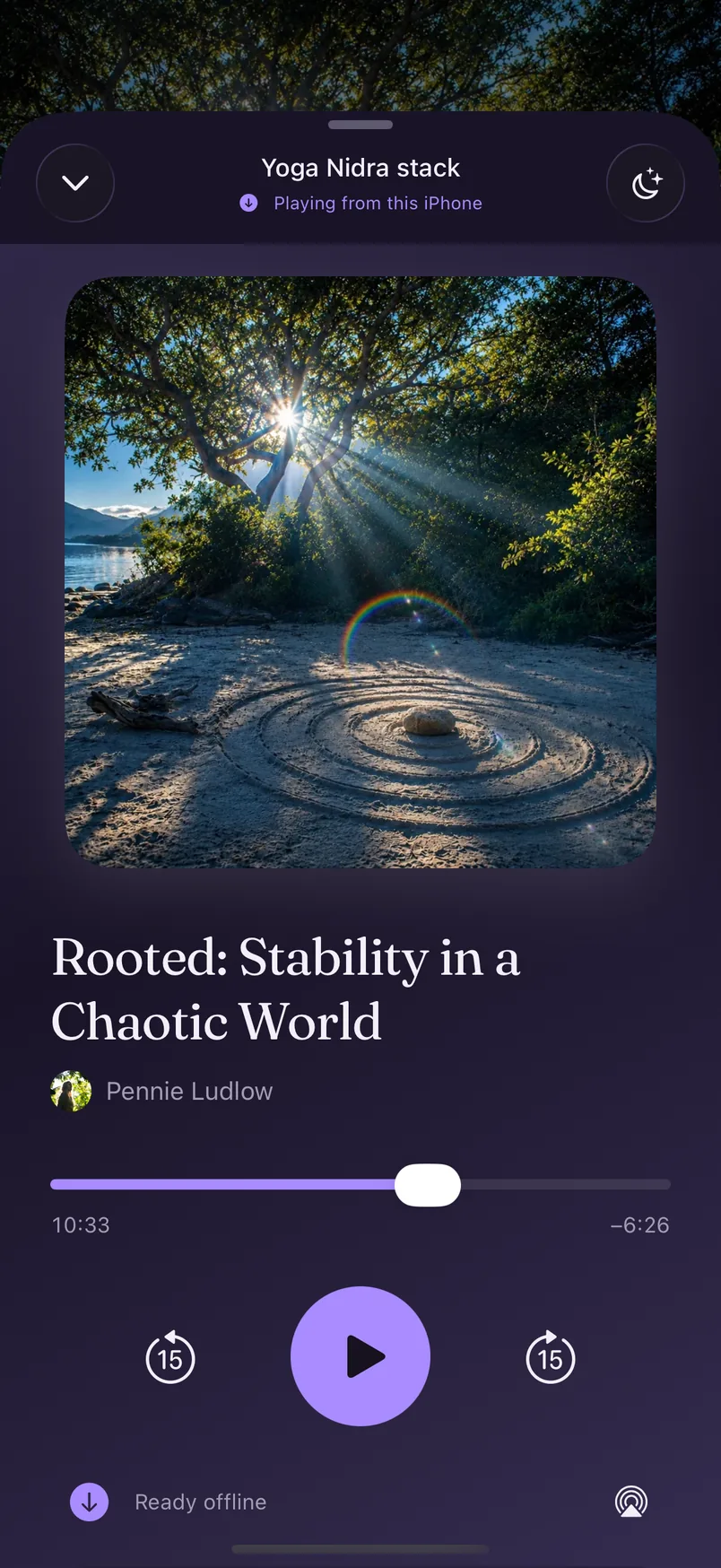
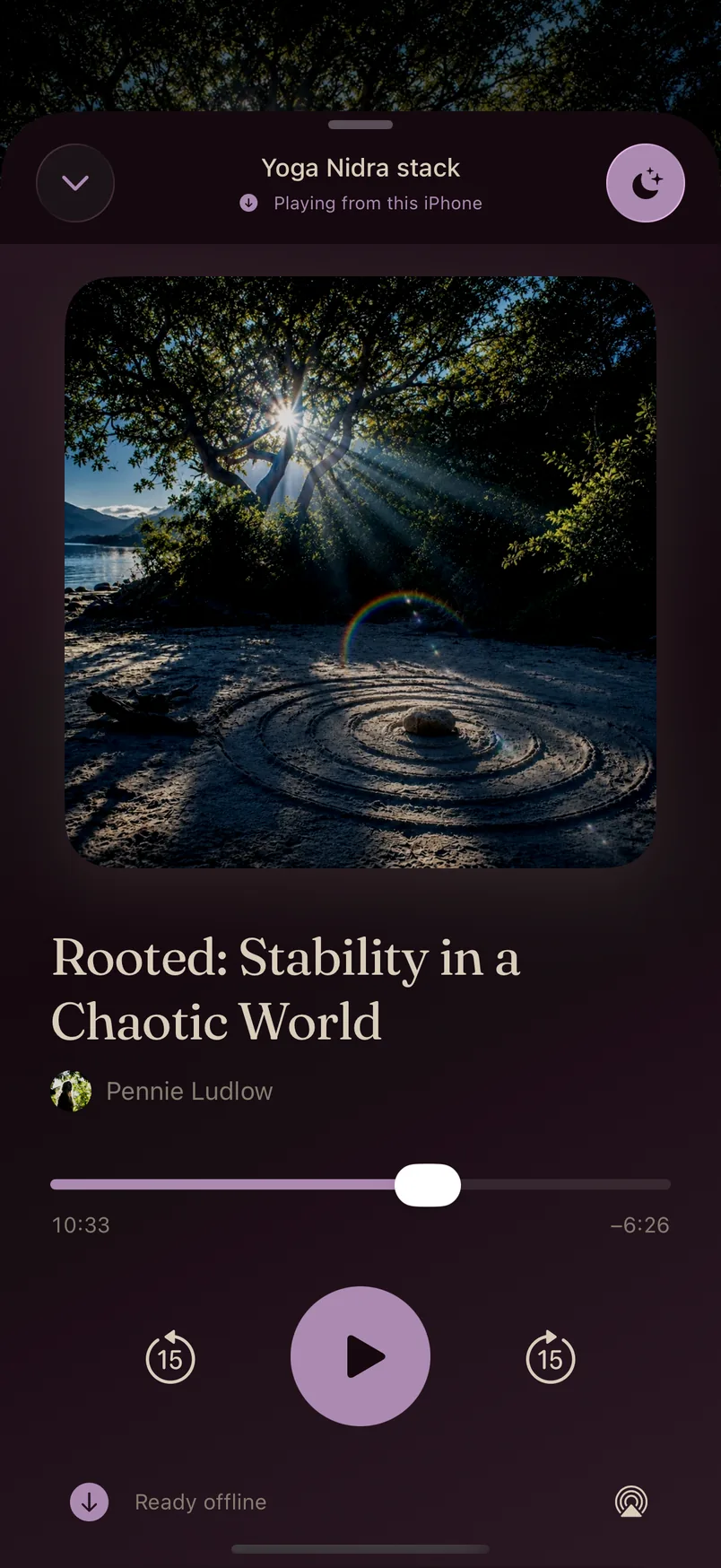
Indee is designed for the nervous system first. Night mode calms the whole app: deliberately dimmed, diffused and soft, so the screen stays gentle while you settle into a practice or come back from one.
It sits alongside light and dark mode. Tap the moon on any screen to switch.
Getting started
Your next practice
is a few taps away.
For this early version, we use TestFlight: Apple’s free app for trying apps before they launch.
Already have TestFlight? You can go straight to step 2.
-
Get TestFlight
On your iPhone, install TestFlight from the App Store. Then come back here for step 2.
Get TestFlight -
Install Indee
Open our invitation on the same iPhone. In TestFlight, tap Accept, then Install.
Install Indee -
Enter your email
Open Indee and enter your email address. The listening containers you’ve bought or been invited to appear automatically.
Choose one to begin. Download it while connected to listen offline later.
Help shape what comes next
A small note from you
can make the app better.
Something confusing, slow or broken? Something you’d love to use more? We’d like to hear it while we refine the app for launch.
Thank you for being part of this.
Naveed and the Indee team
Tell us from your iPhone
In TestFlight, choose Indee, then Send Beta Feedback. You can add a screenshot and a note about what happened.
You can also take a screenshot inside Indee and use Share Beta Feedback from the screenshot options.
Contact the Indee teamA few useful things to know
Do I need an Indee account?
Your email address is your account. Enter the one your invitation or purchase went to, and your containers appear automatically. An invitation you haven’t accepted yet is waiting on the home screen.
Can I listen to everything offline?
You choose which recordings to download. Download them while you have a connection, and wait for them to finish before going offline. You’ll need a connection to sign in and receive new recordings.
How is night mode different from dark mode?
Dark mode swaps the light background for a dark one. Night mode goes further: it dims the artwork, softens the contrast and warms the colours across the whole app. Tap the moon on any screen to turn it on or off.
What if I can’t install the beta?
Open the invitation on your iPhone after installing TestFlight. TestFlight will show whether your device and iOS version can run the current build. If you get stuck, get in touch.
How do I get app updates?
Keep TestFlight installed. New beta versions are available there, and you can turn on Automatic Updates for Indee in TestFlight.